PATTERN PLAY · BEGINNER GUIDE
How to make seamless patterns without drawing
Choose a design you love. Give it your colours. Make it work for your project.
You do not have to draw every petal or arrange repeat tiles by hand to make a pattern feel like yours. One starting design can look bright and playful, warm and nostalgic, or soft and botanical simply by changing its palette.
This guide shows you how to create a personalised version of an existing seamless pattern in the Pattern Sorbet editor. You start with a design from the collection, rather than uploading your own artwork or generating a new illustration from a text prompt.
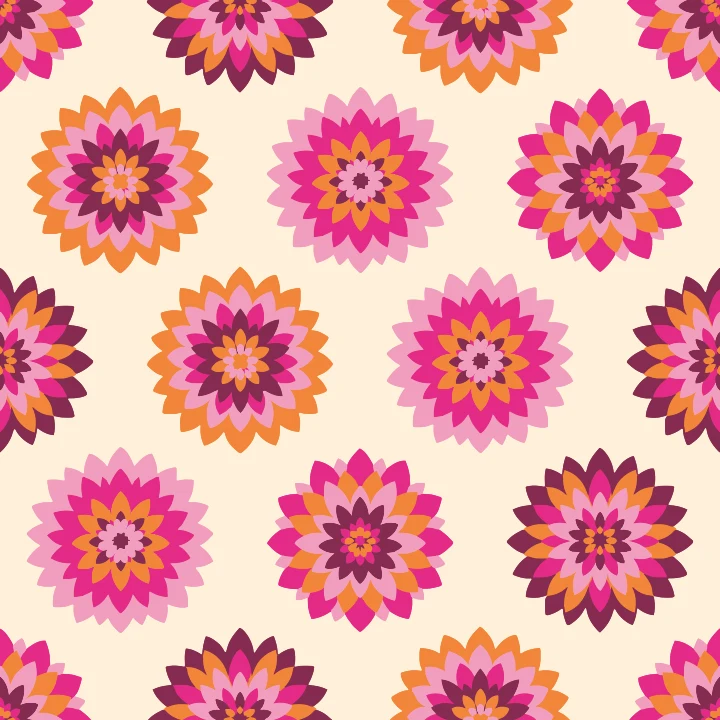
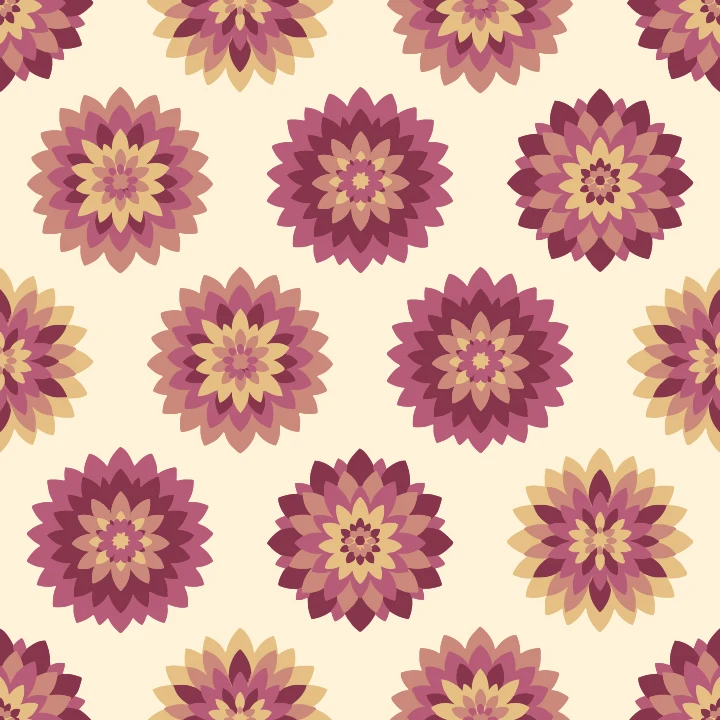
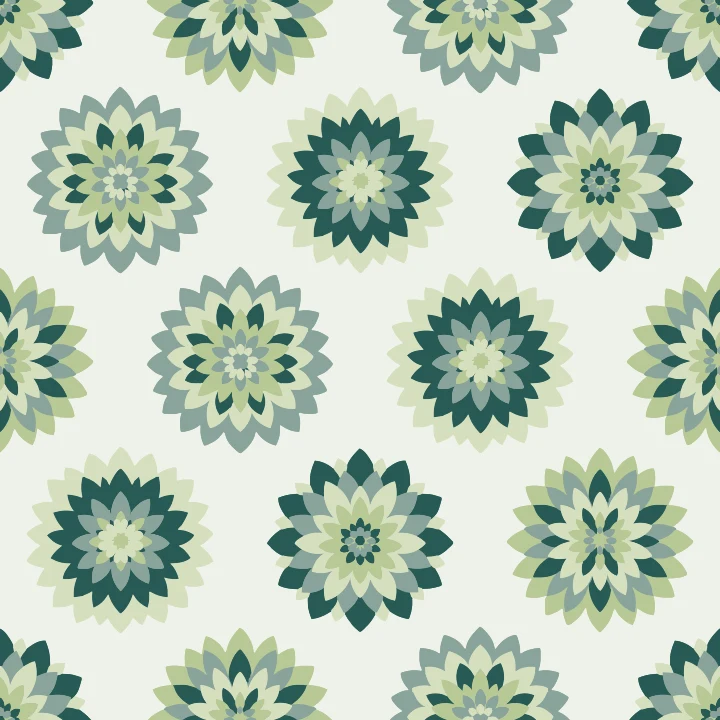
One design, three colourways. The flower shapes and repeat stay the same; only the colours change. Try Dahlia Disco in the editor.
What makes a pattern seamless?
A seamless pattern is built from a tile whose opposite edges connect. Place copies beside and above one another, and the design continues without an unwanted border or break.
That makes a repeating pattern useful for wrapping paper, fabric, packaging and digital backgrounds. A single decorative image is not necessarily a seamless tile: if the edges do not match, repeating it will reveal the joins.
In Pattern Sorbet, the collection designs already repeat. Your starting point is a ready-made seamless layout, so you can focus on colour and scale.
1. Choose your starting pattern
Open the online seamless pattern maker and browse a category such as Flowers, Fruit & food or Basics. You can also search for a design by name.
For a first project, pick a motif you can easily imagine using. A bold dahlia can be the main print in a collection; a simple stripe or check can become its quieter companion. For this guide, use Dahlia Disco so you can compare your choices with the examples above.
2. Change the pattern colours online
Try a ready-made palette, then adjust individual colour swatches. If you already have a brand palette, enter your own hex colours to bring the pattern closer to that look.
Start with the background. A light background keeps the overall feel airy, while a deeper one can give the same flowers a stronger presence. Next, choose the main flower colour and use the remaining colours to separate the petal layers.
- Keep some contrast. If neighbouring colours are too similar, small details can disappear.
- Give one colour the lead. Let the others support it rather than making every colour equally intense.
- Check the whole repeat. A swatch may look lovely on its own but feel very different across a page.
You can save a palette privately to your account and apply it to another pattern later. That is a useful starting point for a matching collection of florals, stripes and checks.
3. Check the scale and repeating layout
Use the pattern size control and compare the tile view with the repeating preview. Think about where the pattern will appear: large flowers can make a statement on a notebook cover, while a smaller repeat may suit a gift tag.
The preview zoom helps you inspect the design; it does not set the physical print size of your finished product. Check that size again in your layout software or your printer’s product preview.
Before downloading, look across the repeating preview for the balance of colour and space. If you need to check the join in another app, place the exported tile in a two-by-two grid at its exact dimensions, with no gaps or overlap.
4. Download a seamless tile or an A4 sheet
Choose the export layout that matches your project:
- Seamless tile: choose this when you need an image that repeats edge to edge.
- A4 sheet: choose this for a ready-arranged page. An A4 sheet is not a repeat tile, so do not use the page itself as a seamless swatch.
PNG is a raster image that works with many design and printing tools. SVG is a vector format for software that supports it. Check the pixel dimensions and plan options shown in the download dialog, and follow your printer’s file requirements.
Keep the tile’s original proportions and avoid adding a border, margin or crop if you want to preserve its seamless repeat.
Try your first colourway
Open Dahlia Disco, pick your colours and watch the repeat change. Your first download is free for personal use. Further downloads and commercial use require a paid plan; see the current usage rights before using a pattern on products for sale.
Make Dahlia Disco your ownA few common questions
Do I need Photoshop or Illustrator?
No. You can customise patterns in Pattern Sorbet in your browser. You may still need another design tool to place your download into a product layout.
Is Pattern Sorbet a free pattern generator?
You can explore the editor and try colour combinations before choosing a plan. Your first download is free for personal use. It is not an unlimited free download service, and this workflow starts with existing collection designs rather than generating new artwork.
Can I upload my own drawing?
This guide uses patterns from the Pattern Sorbet collection. It does not describe an upload or image-to-pattern feature.
Can I sell products made with a pattern?
A paid subscription includes a commercial licence, subject to the usage terms. Pattern-file resale and sharing are not allowed. Check the licence for the rules on new products, colourways and use after a subscription ends.
A small change in palette can take the same motif in a completely new direction. Start with one pattern, explore a few combinations, and keep the version that feels right for your project.